After a Review - Capturing & Tracking Signatures

Description
This workflow allows Assessors, Learners and Employers to add their signatures to a locked review record.
Required module
ePortfolio
Type of user
- Assessors
- Learners
- Employers
Features
- Once the Assessor has locked the review record, then the 'Signatures' section loads a table displaying which signatures are pending and which are completed. There is a row per invitee to the review.
- Each row in the table displays the role of the invitee, the name of the invitee and the date & time the signature is completed. If a signature has not been completed, then 'Pending' displays in place of the date & time. Please be aware that invitees require an Identity account to access Apprenticeship Management and they must have access to the review record to complete their signature.
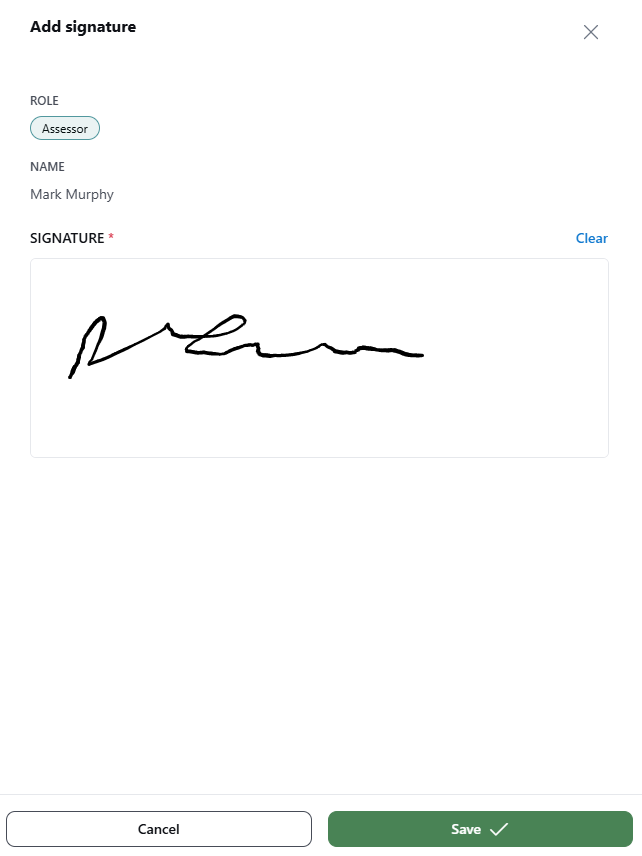
- Each user can only provide their own signature. In the table, the row that corresponds to the logged-in user displays a 'Sign' button. Selecting the 'Sign' button opens a side-drawer to complete the signature.
- The side-drawer will display the role and name that will be associated with the signature. There is a pad within the side-drawer where the signature can be drawn. If a mistake has been made within the pad, then the pad can be cleared to re-do the signature.
- Once the signature has been added to the side-drawer, then the signature can be saved.
- The Assessor can view read-only copies of the completed signatures added to the review record from the table.
- There are a handful of methods to track signatures that need to be completed.
- In the 'Past Occurrences' list of the 'Reviews' area, the review record will display a status based upon the completed signatures within the record:
1) Requires Action - this displays when the review is missing the Learner's signature and at least one Assessor signature.
2) Signed - this displays when the review has the Learner's signature and at least one Assessor signature. - Once a review record has been locked, then a task will be generated into the Learner's To Do list to complete their signature against the review record. Learner's can track this task via their homepage or via their 'To Do' page. The Assessor and Employer can track an individual Learner's review signatures from within the Learner Profile and selecting the 'Tasks' tab.
- Once a review record has been locked, then a task will be generated into the Employer's 'Signatures missing' category in their To Do list to complete their signature against the review record.
- The Assessor can track pending signatures for the review records via the 'Signatures missing' category in their To Do list. Their own signatures can be viewed in the 'My signatures' list whilst pending Learner and Employer signatures can be viewed and nudged in the 'Learner/employer signatures' list.