Reviewing Evidence

Description
This workflow allows delivery staff to review Evidence Upload records associated with learners.
Required module
ePortfolio
Type of user
- Assessors
Features
- The Assessor can review Evidence Upload records either by their caseload of learners or by individual learners.
- When the Assessor chooses to review Evidence Uploads by their caseload of learners, then from the Homepage, the user can select the 'Evidence to review' category from the 'To do' section. The category displays the total number of Evidence Upload records from across the caseload of learners that do not have the status 'Reviewed' or 'Sent back'.
- After selecting the 'Evidence to review' category, a list of Evidence Upload records is displayed, with the oldest record displaying first. Each record in the list presents the name of the learner, the name of the Evidence Upload, a preview of the mappings, and the date the record was uploaded.
- The user selects to 'View' a particular record from the list to be presented with the full details of the record.
- When viewing the full details of a record, the Assessor can select 'Mark evidence' to update the mappings if needed and to mark the record as completed.
- If the learner needs to take further action on the evidence before it can be considered completed, then the 'Assessor' can select 'Send back'.
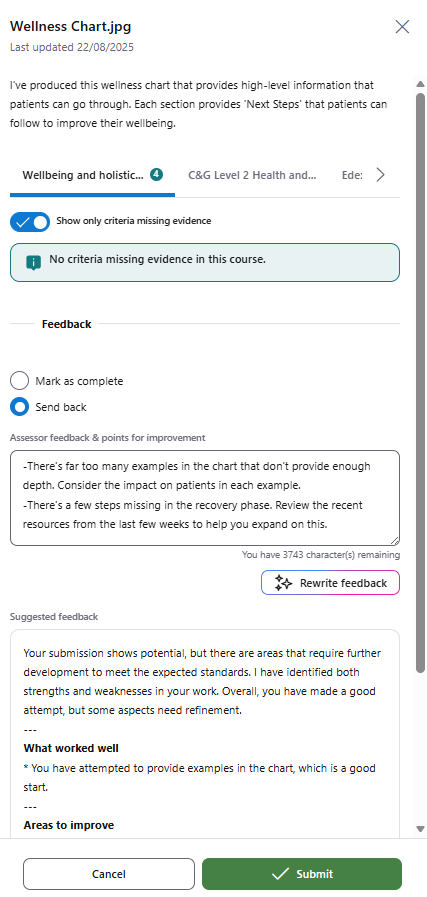
- After selecting whether to complete or send back the evidence, the Assessor is then presented with a text box to provide written feedback to the Learner.
- Users with access to OneAdvanced AI can use the rewrite feature built into the workflow. After providing short-hand notes into the feedback text box, the Assessor can select 'Rewrite feedback' to allow AI to rewrite and reformat the notes into actionable, digestible feedback. The Assessor can choose to either disregard the AI's output, or they can update the feedback text box to use the AI's suggestion. The Assessor can still edit the feedback after updating their own with the AI's suggested feedback.
- When the Assessor is satisfied with the feedback, they can submit the record. When the Assessor has selected 'Mark as complete', then the record's status is updated to 'Reviewed' and the feedback is visible for the Learner. The Assessor is then returned to the list of Evidence Upload records to review.
- When the Assessor has selected 'Send back' and submits, then the learner will receive a new task in their To Do list informing them to take further action on the evidence. When the learner views the task, they have visibility of the evidence details including the feedback left by the Assessor. The learner can then upload a new version of the evidence.
- Please note that if the Assessor signs-off on a file in Smart Assessor, and that file is one of multiple files in an Evidence Upload record in Apprenticeship Management, then the entire Evidence Upload record may still display in the 'Evidence to review' list. In this instance, it is advisable to verify the sign-off status of the other files to ensure they too have been appropriately signed-off and mapped. This also applies to where evidence has been grouped in Smart Assessor: grouped evidence from Smart Assessor displays as a single Evidence Uplaod record in Apprenticeship Management, so in the event some files from the group, but not others have been mapped and signed-off from Smart Assessor, then the entire Evidence Upload record will display in the 'Evidence to review' list.
- When the Assessor chooses to review Evidence Upload records by an individual learner, the user can select 'View' on a learner from their Homepage to be taken to the Learner Profile.
- Within the 'Tasks' tab, the 'Requires attention' list will display all Evidence Upload records for the Learner that do not have the status 'Reviewed'. The list is ordered with the most recent tasks displaying first. Each Evidence Upload record in the list presents the name and description, a preview of the mappings, and the date the evidence was uploaded.
- The user can select the 'Check' button to view the full details of the record.
- When viewing the full details of a record, the Assessor can select 'Mark evidence' to update the mappings if needed and to mark the record as completed or to be sent back to the learner for further action.
- After selecting whether to complete or send back the evidence, the Assessor is then presented with a text box to provide written feedback to the Learner.
- Users with access to OneAdvanced AI can use the rewrite feature built into the workflow. After providing short-hand notes into the feedback text box, the Assessor can select 'Rewrite feedback' to allow AI to rewrite and reformat the notes into actionable, digestible feedback. The Assessor can choose to either disregard the AI's output, or they can update the feedback text box to use the AI's suggestion. The Assessor can still edit the feedback after updating their own with the AI's suggested feedback.
- When the Assessor is satisfied with the feedback, they can submit the record. When the Assessor has selected 'Mark as complete', then the record's status is updated to 'Reviewed' and the feedback is visible for the Learner. The Assessor is then returned to the list of Evidence Upload records to review.
- When the Assessor has selected 'Send back' and submits, then the learner will receive a new task in their To Do list informing them to take further action on the evidence. When the learner views the task, they have visibility of the evidence details including the feedback left by the Assessor. The learner can then upload a new version of the evidence.