What's New
Apprenticeship Management
Accessibility
Accessibility Statement for Assessment & Learning (bksb) - UK
Accessibility Statement for Assessment & Learning (bksb) - Australia
Accessibility Statement for Apprenticeship Management Suite
Assessment & Learning
ePortfolio
Administrator Settings
To Do Lists
Delivery Staff - Signatures Missing
Delivery Staff - Evidence to Review
Delivery Staff - Off-The-Job to Review
Timelog
Logging Off-The-Job
Editing Off-The-Job
How is Off-The-Job Progress Calculated?
Reviewing Off-The-Job
Deleting Off-The-Job
Evidence
Reviewing Evidence
Deleting Evidence
Uploading Evidence
Uploading a New Version of Evidence
Editing Evidence
Progress Reviews
FAQs for Adopting the New Progress Review Workflow
Before a Review - Booking a New Review
Before a Review - Viewing Booked Reviews
Before a Review - Cancelling a Booked Review
Before a Review - Checking Progress Since the Last Review
During a Review - Capturing Review Notes
During a Review - Capturing Follow-Up Tasks
During a Review - Attachments
After a Review - Capturing the Overall Review Summary
After a Review - Locking the Review
After a Review - Capturing & Tracking Signatures
After a Review - Viewing & Booking the Next Review
After a Review - Admin Progress Review Report
Coming Soon... Progress Reviews
New customer information
Education Analytics
Education Analytics Guides
Data Platform Guides
Data Platform FAQs
Data Platform (Bring Your Own BI/Data Share) - User Licence Assignment Administration
Data Platform (Bring Your Own BI/Data Share) - Connection Options
Data Platform (Bring Your Own BI/Data Share) – How to Connect Microsoft Power BI to OneAdvanced Data Platform
Data Platform (Bring Your Own BI/Data Share) - Connecting Microsoft Excel to Snowflake Using ODBC
Data Platform (Bring Your Own BI/Data Share) - Snowflake ODBC Connector Configuration Guide
Onboarding
Onboarding videos - Learner
Onboarding videos - Assessors & Employers
Onboarding videos - Progress Reviews
ePortfolio Learner UX - Fact sheet
Customer Support
Integrations
- All Categories
- Apprenticeship Management
- Assessment & Learning
- Learner guidance
- Navigating the new learner homepage in Assessment & Learning, bksb
Navigating the new learner homepage in Assessment & Learning, bksb

This quick guide introduces the new Home page in Assessment & Learning, designed to enhance your user experience. Here's a step-by-step guide to help you get familiar with the new layout.
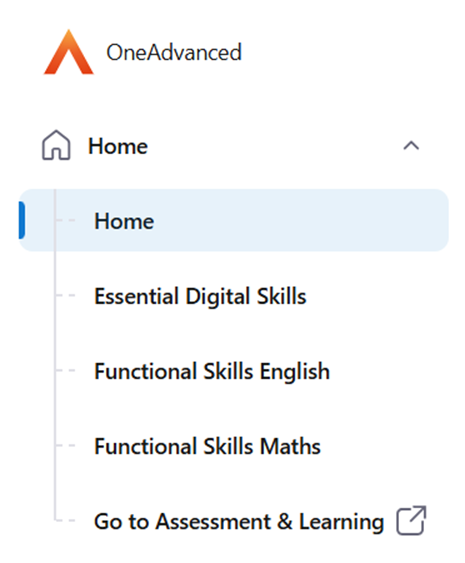
Main menu
From the main menu on the left side of the page, you can navigate to your Home page for a summary of learning progress and next steps.
You can also select a course link to access relevant course pages where you can complete assessment and any learning modules.
It is also possible to navigate to the legacy application using Single Sign On.
Progress
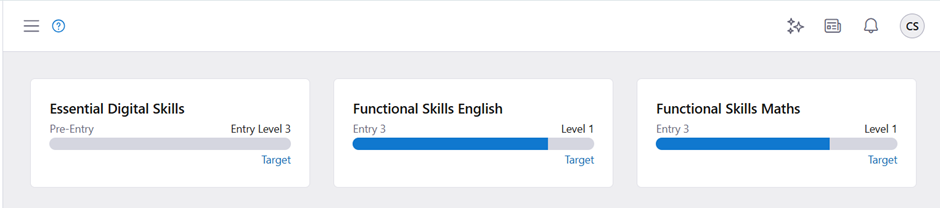
Track your progress towards you target in this section. As you complete your learning, the progress bar will update accordingly. The light bar represents progress for ongoing learning, and the darker bar represents completed assessments.
You can interact with the card by selecting it. It will take you to that course page where you'll find assessments and any learning modules.
To do list
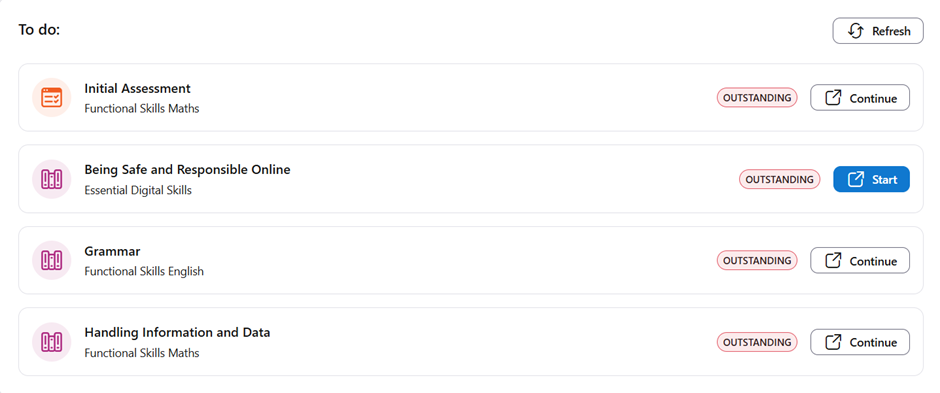
Your To do list shows what assessments and learning you need to complete.
To interact with an assessment, simply select the button within it to Start or Continue
Profile
Your Profile allows you to manage your account settings and log out of the system. It allows you to change themes, such as applying a dark theme.
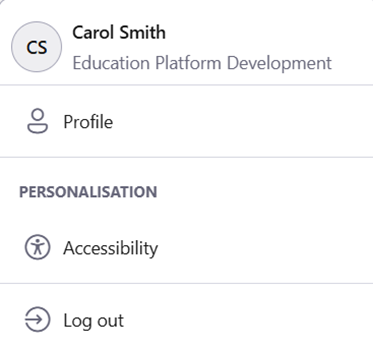
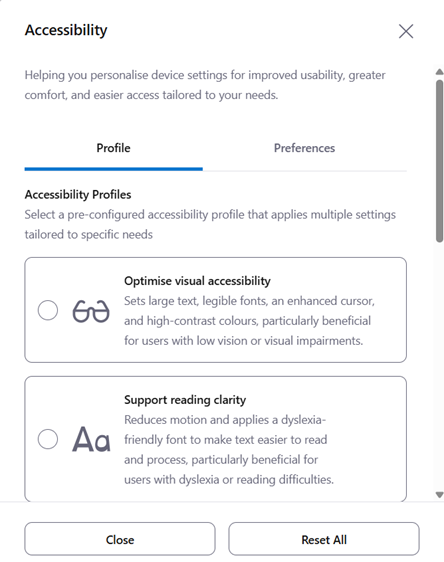
Accessibility
Select Accessibility to access a range of accessibility profiles and preferences to suit any individual preferences or needs.