What's New
Apprenticeship Management
Accessibility
Accessibility Statement for Assessment & Learning (bksb) - UK
Accessibility Statement for Assessment & Learning (bksb) - Australia
Accessibility Statement for Apprenticeship Management Suite
Assessment & Learning
ePortfolio
Administrator Settings
To Do Lists
Delivery Staff - Signatures Missing
Delivery Staff - Evidence to Review
Delivery Staff - Off-The-Job to Review
Timelog
Logging Off-The-Job
Editing Off-The-Job
How is Off-The-Job Progress Calculated?
Reviewing Off-The-Job
Deleting Off-The-Job
Evidence
Reviewing Evidence
Deleting Evidence
Uploading Evidence
Uploading a New Version of Evidence
Editing Evidence
Progress Reviews
FAQs for Adopting the New Progress Review Workflow
Before a Review - Booking a New Review
Before a Review - Viewing Booked Reviews
Before a Review - Cancelling a Booked Review
Before a Review - Checking Progress Since the Last Review
During a Review - Capturing Review Notes
During a Review - Capturing Follow-Up Tasks
During a Review - Attachments
After a Review - Capturing the Overall Review Summary
After a Review - Locking the Review
After a Review - Capturing & Tracking Signatures
After a Review - Viewing & Booking the Next Review
After a Review - Admin Progress Review Report
Coming Soon... Progress Reviews
New customer information
Education Analytics
Education Analytics Guides
Data Platform Guides
Data Platform FAQs
Data Platform (Bring Your Own BI/Data Share) - User Licence Assignment Administration
Data Platform (Bring Your Own BI/Data Share) - Connection Options
Data Platform (Bring Your Own BI/Data Share) – How to Connect Microsoft Power BI to OneAdvanced Data Platform
Data Platform (Bring Your Own BI/Data Share) - Connecting Microsoft Excel to Snowflake Using ODBC
Data Platform (Bring Your Own BI/Data Share) - Snowflake ODBC Connector Configuration Guide
Onboarding
Onboarding videos - Learner
Onboarding videos - Assessors & Employers
Onboarding videos - Progress Reviews
ePortfolio Learner UX - Fact sheet
Customer Support
Integrations
- All Categories
- Apprenticeship Management
- ePortfolio
- Timelog
- Deleting Off-The-Job
Deleting Off-The-Job

Description
This workflow allows users to delete Off-The-Job (OTJ) records from a learner's portfolio.
Required module
ePortfolio
Type of user
- Learners
- Assessors
Features
- Users must navigate to the Timelog to delete OTJ records.
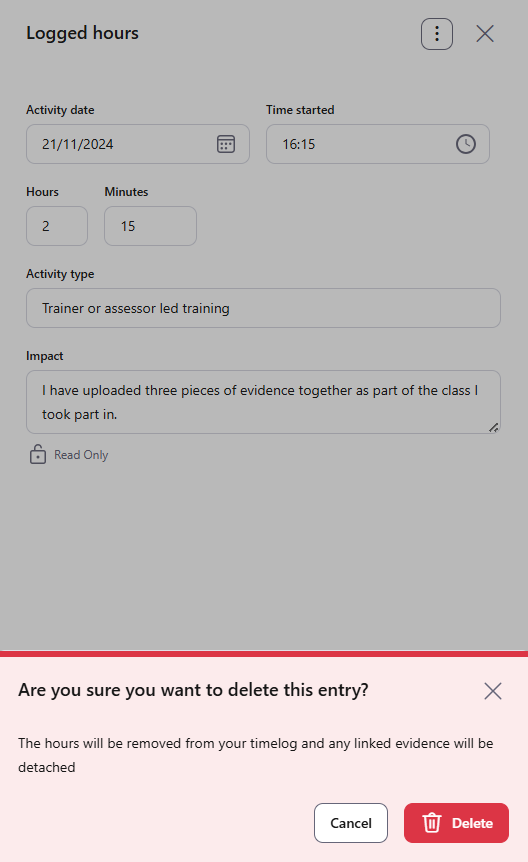
- From the list within the Timelog, the user can select the ellipsis button for the record they wish to delete. From the options, the user will select 'Delete'.
- If the user chooses to 'View' a record, then the ellipsis button is available and the user can select 'Delete' from there.
- The system will ask the user to confirm that they wish to delete the record. The user can either cancel the deletion or confirm and action the deletion.
- In the event an OTJ record is associated with an Evidence Upload record, then the link is also deleted and the Evidence Upload record remains in the portfolio.
- The learner's OTJ progress will reflect the change in logged hours during the next background refresh. The change in progress may not be immediately reflected.
- Learners can only delete OTJ records that do not have the status 'Reviewed'.
- Assessors can delete OTJ records regardless of their status.