Reviewing Off-The-Job

Description
This workflow allows delivery staff to review Off-The-Job (OTJ) records associated with learners.
Required module
ePortfolio
Type of user
- Assessors
Features
- The Assessor can review OTJ records either by their caseload of learners or by individual learners.
- When the Assessor chooses to review OTJ by their caseload of learners, then from the Homepage, the user can select the 'Off-The-Job to review' category from the 'To do' section. The category displays the total number of OTJ records from across the caseload of learners that do not have the status 'Reviewed'.
- After selecting the 'Off-The-Job to review' category, a list of OTJ records is displayed, with the oldest record displaying first. Each record in the list presents the name of the learner, the date and time the OTJ was logged for, the time spent on the activity, and a preview of the 'Impact' value.
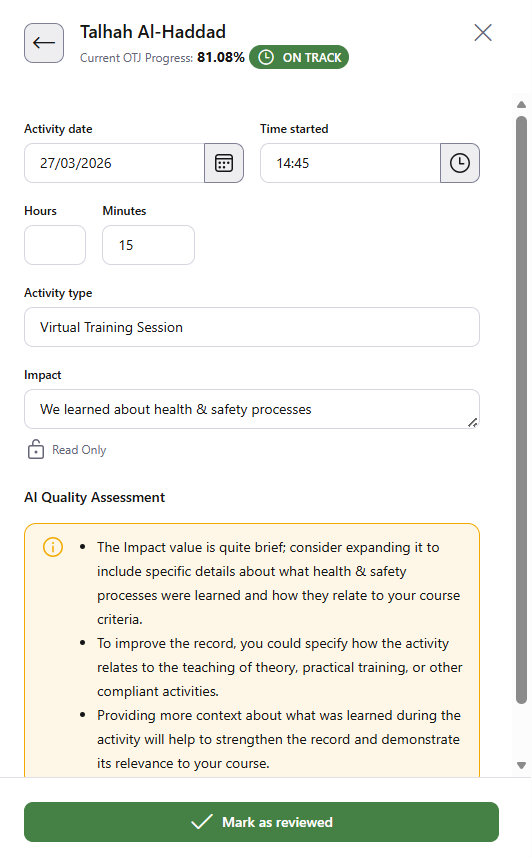
- The user selects to 'View' a particular record from the list to be presented with the full details of the record. The user will also be presented with the learner's current OTJ progress compared to their overall requirement and an indicator to inform if the learner is behind or on track with their progress.
- Users with access to OneAdvanced AI will have visibility of the latest assessment by the agent of the record's quality. If the agent was not used during the creation of the record, then no assessment will be displayed.
- When the user is viewing the full details of the OTJ record, the user can update the status of the record to 'Reviewed' by selecting 'Mark as reviewed'. After selecting this option, the record will be updated and the user will be returned to the list of OTJ records from across the caseload.
- When the Assessor chooses to review OTJ by an individual learner, the user can select 'View' on a learner from their Homepage to be taken to the Learner Profile.
- Within the 'Tasks' tab, the 'Requires attention' list will display all OTJ records that do not have the status 'Reviewed'. The list is ordered with the most recent tasks displaying first. Each OTJ record in the list presents the date and time the OTJ was logged for, the time spent on the activity, and a preview of the 'Impact' value.
- The user can select the 'Check' button to be presented with the full details of the record. The user will also be presented with the learner's current OTJ progress compared to their overall requirement and an indicator to inform if the learner is behind or on track with their progress.
- Users with access to OneAdvanced AI will have visibility of the latest assessment by the agent of the record's quality. If the agent was not used during the creation of the record, then no assessment will be displayed.
- When the user is viewing the full details of the OTJ record, the user can update the status of the record to 'Reviewed' by selecting 'Mark as reviewed'. After selecting this option, the record will be updated and the user will be returned to the 'Requires attention' list.
- In the event the learner has not had any OTJ logged in the previous two calendar weeks, then the 'Requires attention' list will inform the Assessor that the learner may be behind their OTJ requirement. This alert will be pinned to the top of the 'Requires attention' list and will display the last date OTJ was logged for. The list will consider if the learner has returned from a Break-in-Learning or is past their Course End Date and therefore outside of their practical period.
- The Assessor can also use the 'Editing Off-The-Job' workflow to edit OTJ records to have the status 'Reviewed' from the Timelog.