Before a Review - Viewing Booked Reviews

Description
This workflow allows users to view Reviews booked in Apprenticeship Management.
Required module
ePortfolio
Type of user
- Assessors
- Learners
- Employers
Features
- Assessors and Employers can view the next booked Progress Review for each learner from the list of learners on the homepage. For Assessors, when the Progress Review has been created within Apprenticeship Management, the button next to the review details will open the 'Reviews' area. The date will be colour coded based on the date in relation to today's date:
Blue - The review is scheduled to take place more than 7 days in the future.
Yellow - The review is scheduled to take place within 7 days in the future.
Red - The review is scheduled to take place within 3 days in the future. - For Learners, in the event the next booked session is a Progress Review, these details will be displayed in the 'Up next' section on the homepage.
- Assessors, Learners and Employers can also view any Progress Review they are booked onto through the Calendar. When selecting the day the Progress Review has been booked for, the event will display. Selecting the event will open a preview of the date and time the Progress Review has been booked for, the list of invitees and the location the review is to be held at. By selecting the ellipsis button in the preview, the full Progress Review record can be accessed.
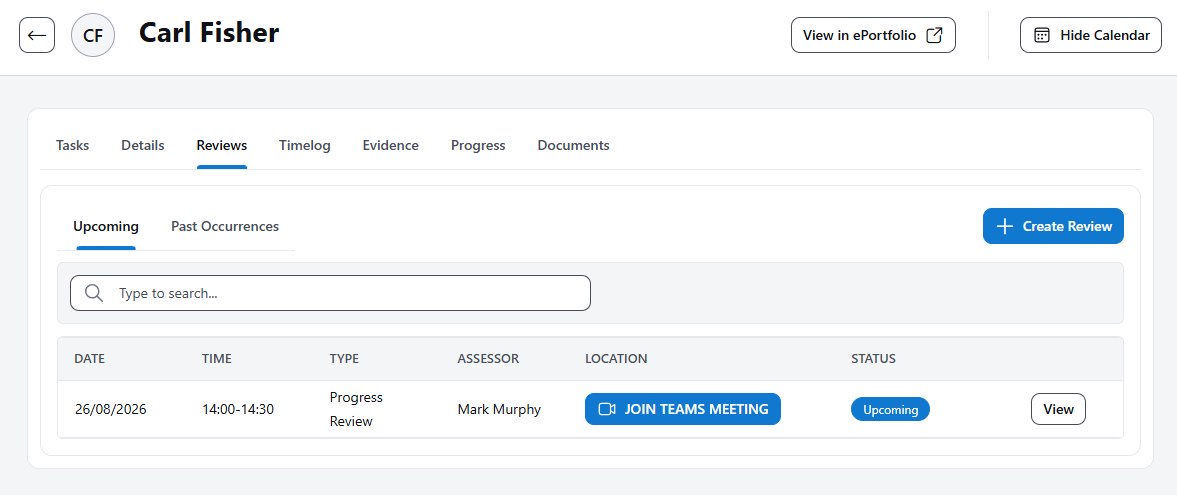
- To view all upcoming and completed Progress Reviews booked through Apprenticeship Management for a learner, then the Assessor and Employer can drill into the specific Learner Profile, then navigate to the 'Reviews' tab. For Learners, there is a menu item called 'Reviews' to access the same view.
- The 'Upcoming' tab of the 'Reviews' area will list all reviews booked through Apprenticeship Management booked for a future date and time. The list is ordered chronologically to show the next review at the top of the list. The list will display the date the review is booked for, the start and end times of the review, the type of Review booked and the location. In the event a review has been booked as a Microsoft Teams meeting and the review is scheduled to take place on today's date, then there is a 'Join with Teams' button appears in place of the location. Selecting the button will launch the meeting within Microsoft Teams. There are two statuses that display:
1) Upcoming - this displays a review booked for a future date and time.
2) Cancelled - this displays a review that was originally planned for a future date and time but has since been cancelled by an Assessor.
- The 'Past Occurrences' tab of the 'Reviews' area will list all reviews booked through Apprenticeship Management that occurred prior to today's date and time. When a review's end time is in the past, then the review moves from the 'Upcoming' list to the 'Past Occurrences' list. The list is ordered chronologically to show the most recent review at the top of the list. The list will display the date the review was booked for, the start and end times of the review, the type of Review booked, the location and the status. The status of the review derives from the signatures data within the review. There are three statuses that display:
1) Requires Action - this displays when the review is missing the Learner's signature and at least one Assessor signature.
2) Signed - this displays when the review has the Learner's signature and at least one Assessor signature.
3) Cancelled - this displays a review that was originally planned to take place but has since been cancelled by an Assessor.
- Each row in the 'Upcoming' and 'Past Occurrences' tabs has a 'View' button that will open the record. When a new review has been booked, then the Notes, Tasks and Overall Review Summary can be edited. Further guidance is provided in the 'Progress Reviews' category of the help section.