Uploading Evidence

Description
This workflow allows new Evidence Upload records to be created, contributing towards progress and evidencing learning.
Required module
ePortfolio
Type of user
- Learners
- Assessors
Features
- Users can upload evidence either from the Homepage or from the Evidence area.
- Learners on their Homepage can select the add button.
- Assessors on their Homepage can select the ellipsis button against a learner from their caseload.
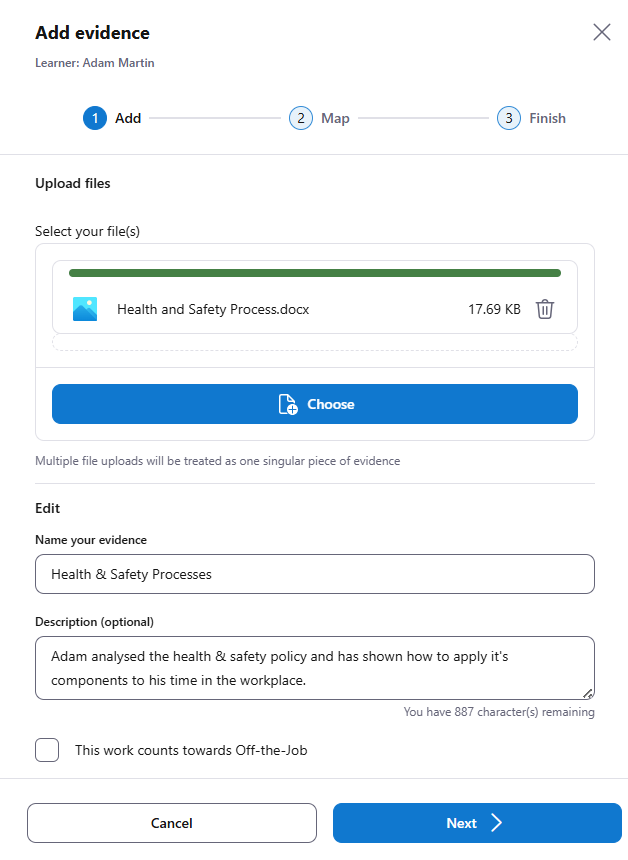
- Uploading evidence is done through a wizard, comprising of three steps: Add, Map and Finish.
- In the Add step, users must upload at least one file. As many files as required can be uploaded, but multiple files added will be treated as a singular Evidence Upload record.
All files are ran through an anti-virus scan when uploading to maintain security.
If a filename is already in use as existing evidence for the learner, then the file will require a unique name prior to uploading. - In the Add step, the Evidence Upload record requires a name to be provided. A more detailed description can be added with up to 1000 characters, although this is optional.
- In the Add step, Off-The-Job (OTJ) can be logged simultaneously as optional detail if the Evidence Upload record was created using OTJ time. Adding OTJ in this manner will create a link between the OTJ record and the Evidence Upload record.
- In the Map step, the user can map the Evidence Upload record to the modules and criteria from the learner's active courses, indicating what the Evidence Upload record applies to. Each active course is displayed as a separate tab.
A module can be collapsed to display the criteria associated with the module.
Selecting the checkbox against a module will automatically select all associated criteria, to indicate the Evidence Upload record applies to the entire module.
Individual criteria can be selected via the checkbox next to it, to indicate the Evidence Upload record applies to the selected criteria.
A green tick icon displayed next to modules and criteria indicates that component of the course has already been mapped to by previous Evidence Upload records and has been signed off by an assessor.
At least one criteria needs to be selected to progress the wizard.
- The Finish step provides a summary of the Evidence Upload record that will be saved to the system. If any detail is not correct, then the user can navigate back through the steps to make changes.
- Learners on the Finish step must declare that the uploaded files are their own work.
- Learners on the Finish step can leave a comment that will be visible by their assessor. In the event an OTJ record has also been logged in the wizard, then the 'Impact' value will automatically populate the comment. The comment can be edited without changing the 'Impact' value that will be saved on the OTJ record.
- Assessors on the Finish step can choose to mark the submission of evidence as complete. If the upload is marked as completed, then the assessor must leave written feedback for the learner. The feedback can be up to 4000 characters in length.
- Assessors with access to OneAdvanced AI can convert shorthand, rough feedback notes into actionable, digestible feedback for the learner. When there is a feedback value entered, the agent can be selected to rewrite the provided feedback. The agent will provide it's version of feedback in the 'Suggested feedback' field. The assessor can then choose to either discard the agent's suggested feedback by cancelling, or can accept and overwrite their own feedback with the agent's suggestion. The agent's version of the feedback can then be edited if needed.
- Once the Evidence Upload record has been saved, a summary of the learner's evidence progress will be displayed. The user can choose to create a new Evidence Upload record and start the wizard again, or can close the workflow.