Logging Off-The-Job

Description
This workflow allows users to add and save Off-The-Job (OTJ) that contributes towards a learner's progress.
Required module
ePortfolio
Type of user
- Learners
- Assessors
Features
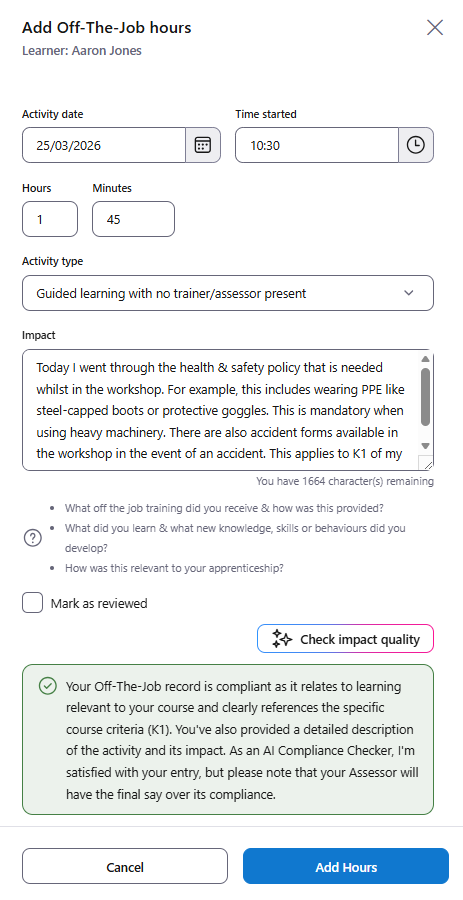
- Users can add OTJ either from the Homepage or Timelog.
- Users must enter a date that the OTJ activity occurred.
- Users must enter a time the activity was started.
- Users must enter, in 'Hours' and 'Minutes', the time that was spent on the activity.
- Users must choose a type of activity. The available types are configured from the Smart Assessor system so only applicable OTJ activity types are visible.
- Users must outline how the activity impacted progression. Up to 2000 characters can be entered to detail the impact the activity had.
- Assessors can choose to mark the entry as 'Reviewed'.
- Users with access to OneAdvanced AI can check the quality of the entry prior to saving. The agent will assess the quality of the 'Impact' field against the current funding rules to inform the user if the description clearly demonstrates how the activity applies to the course and benefitted the learner's progression. The agent will also check the 'Time started' to assess if the activity was likely to take place outside of the learner's typical working hours. Please note that the agent does not have access to the learner's working pattern and so will only suggest if there is a likelihood the activity occurred outside of usual working hours.
The agent will also display it's assessment in a red, amber or green box. The colour indicates the agent's assessment:
Red - indicates the Time Started of the activity likely occurred outside of working hours and the provided impact does not clearly demonstrate progression in learning or application to the course.
Amber - indicates the Time Started of the activity likely occurred outside of working hours or the provided impact does not clearly demonstrate progression in learning or application to the course.
Green - indicates the Time Started likely occurred within usual working hours and the impact clearly demonstrates how the activity benefitted learning and applies to the course.
The entered information can be updated prior to saving and the agent can re-assess the quality as many times as needed.
Use of the agent is not required to save the OTJ record.
- When all required fields have an appropriate value, the OTJ record can be saved.
- The learner's OTJ progress will reflect the change in logged hours during the next background refresh. The change in progress may not be immediately reflected.