Before a Review - Booking a New Review

Description
This workflow allows Assessors to book new Reviews in Apprenticeship Management.
Required module
ePortfolio
Education - Microsoft Teams (Optional - Administrators will have needed to configure the tenant)
Type of user
- Assessors
Features
- Assessors can book new reviews for a learner by navigating into the Learner Profile, then selecting the 'Reviews' tab. From within here, there is a 'Create review' button. Selecting this opens the 'Create review' side-drawer. The Assessor can fill in the details required for the review session:
1) Review Date - This field is required - The Assessor must enter a date that the review will take place on.
2) Start Time - This field is required - The Assessor must enter the time that the review will start.
3) End Time - This field is required - The Assessor must enter the time that the review is scheduled to end.
4) Location - This section is required - The location can be considered to be virtual, in-person, or a hybrid of both. The Assessor can enable the 'Teams meeting' toggle so the review is booked as a Microsoft Teams meeting. In this instance, they can also enter the name of a location if the meeting is to be held both virtually and in-person with different invitees. When the review is not configured to take place over Teams, then the Assessor must enter the name of a location.
5) Assessor - This field is optional - The Assessor can choose to invite other Assessors associated with the Learner to attend the review.
6) Employer - This field is optional - The Assessor can choose to invite contacts from the learner's associated Employer to attend the review. The first contact to display in the list of available contacts is the person associated as the Employer Manager to the learner from Smart Assessor.
7) Other invites - This field is optional - In the event other parties, such as safeguarding officers or employer contacts without an account in Apprenticeship Management for example, need to attend the review, then the Assessor can enter the email addresses of those contacts. Each added email address will display in a list under the field and can be removed from the invite if required. This field has validation to ensure a properly formatted email address is entered.
- Once all required fields have been configured, the Assessor selects the 'Create review' button to save the review.
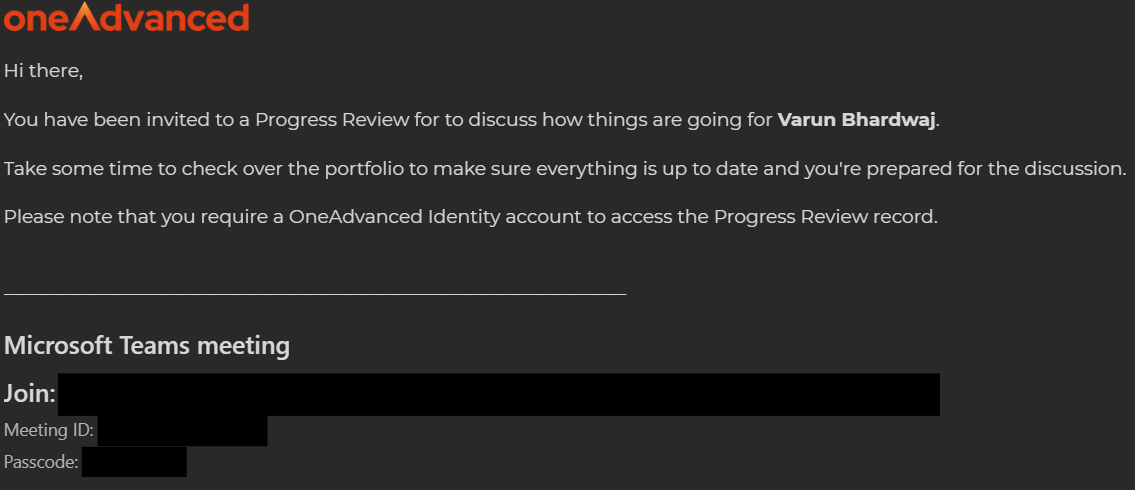
- Email notifications will be sent to the Assessor who booked the review, and all invitees. Regardless of whether the review was configured as a Microsoft Teams meeting or in-person, then the invitees can add the review to external calendar apps, such as Outlook.
- When attempting to book a review as a Teams Meeting, the integration with Microsoft Teams will check that the logged in Assessor who is booking the review is a user within the Microsoft Teams tenant via the email address against the user's Identity account. If the integration cannot verify the user exists in the tenant or the user has not logged into the tenant, then a pop-up window will open so the Assessor can sign-in via their Microsoft account. If the review is booked without the Assessor having logged into their Microsoft account, then the review will not save as a Teams Meeting and will instead save as an in-person review.